




Are you a first-time smartphone user? This guide will help you use your smartphone effectively. It covers everything from initial setup to app management.
Basic Components and Terminology
Physical parts of a smartphone
A smartphone has several important parts. The touchscreen is the primary way to interact with it. The processor handles the phone's tasks. And the battery is what makes it work.
Operating systems: Android vs iOS
Smartphones can use different operating systems. Android is highly customizable and used on many phones. iOS, on the other hand, is only for Apple devices.
Technical terms: RAM & ROM
RAM affects how your phone handles multiple apps simultaneously while ROM is your phone's storage space.
The table below summarizes the technical components of a smartphone.
Tips for Getting Started on Your Smartphone
1. Initial setup of your device
When you turn on your smartphone for the first time, you'll go through an initial setup process. This process allows you to personalize your device to suit your needs.
SIM insertion and power on
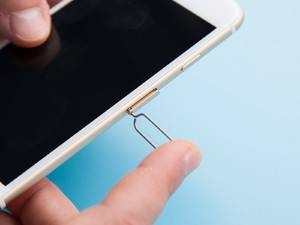
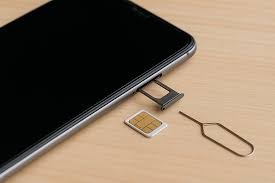
The first step is to insert the SIM card into your device. The SIM is essential for connecting to your carrier's network. With it, you can make calls, send messages, and access mobile data.
Once you've inserted the SIM card, you can turn on your device. To turn on your smartphone, press and hold the power button. Then, follow the on-screen instructions to select your language.
Creating accounts (Google/Apple ID)
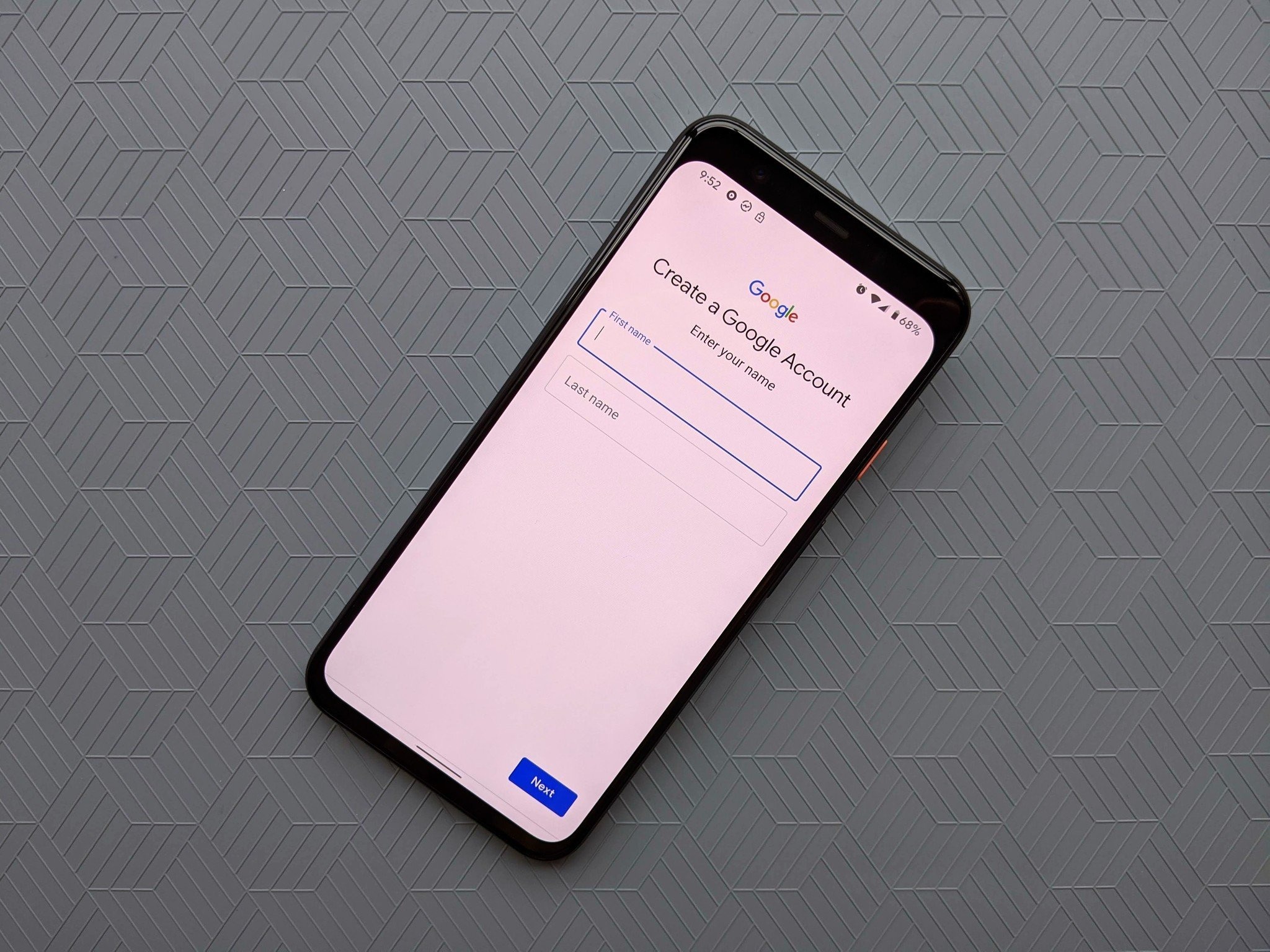
During the setup process, you'll be asked to create or sign in to your Google account (for Android devices ) or Apple ID (for iOS devices ). This is crucial for accessing app stores and syncing your data.
Basic security settings
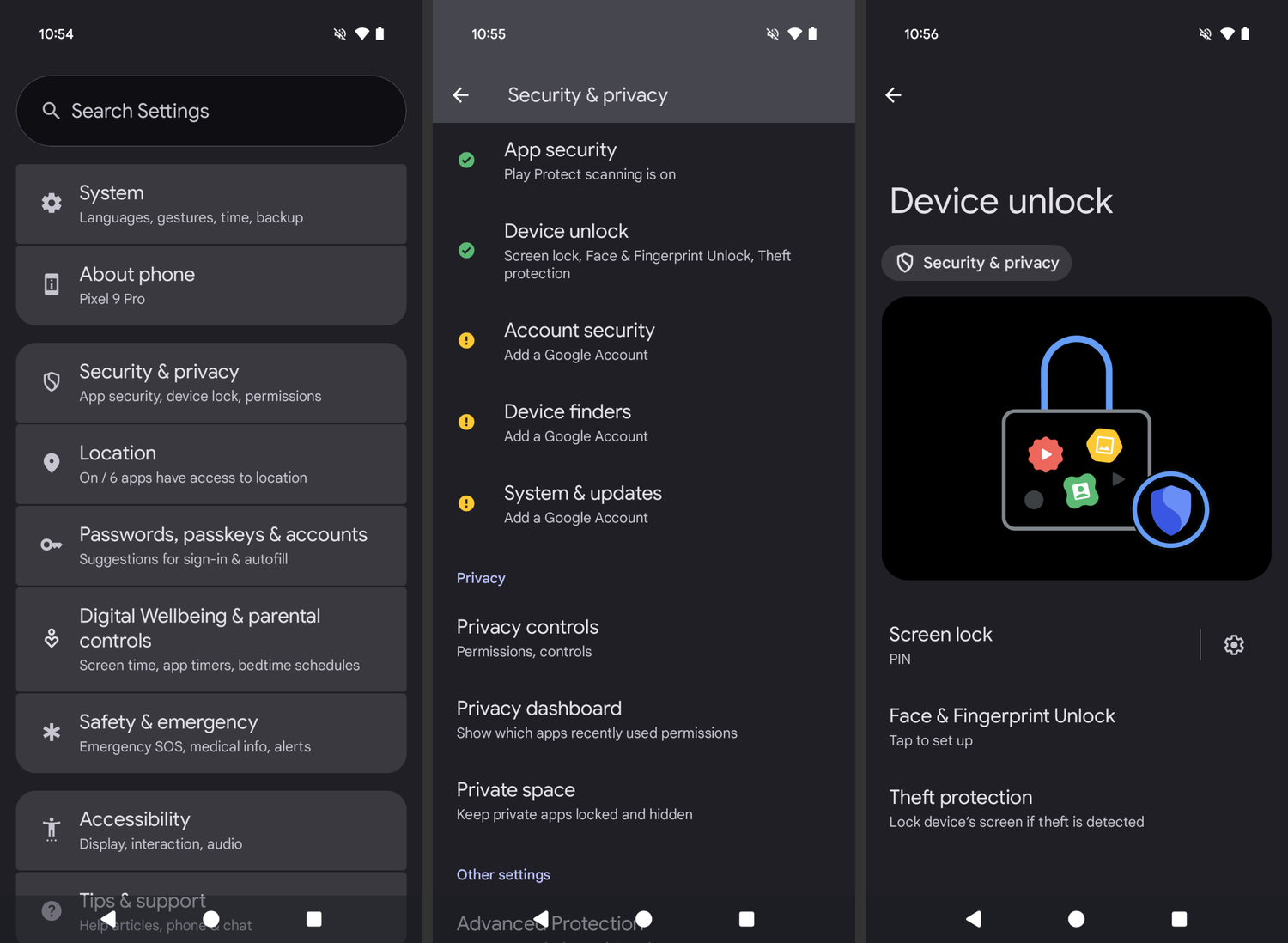
Your device's security is paramount. Here are some basic settings:
- Passwords and PINs: Set a strong password or PIN to unlock your device. This will prevent unauthorized access.
- Facial and fingerprint recognition: If your device allows it, set up facial recognition or fingerprint authentication for an extra layer of security.
2. User interface navigation
The user interface is the face of your smartphone. By familiarizing yourself with it, you can take full advantage of your device's features.
Home screen and app drawer
The home screen is the first screen you see when you turn on your device. Here you can find shortcuts to apps and widgets. These allow you to quickly access important information. The app drawer, on the other hand, is where all the apps installed on your device are stored.
To access the app drawer on an Android device, you usually need to tap a grid icon or an up arrow on the home screen. On iOS , you can simply swipe right on the home screen to see all your apps.
Basic gestures: tap, swipe, pinch
Basic gestures are essential for interacting with your smartphone. Tapping an item lets you select or open it. Swiping lets you move between screens or scroll through a list. Pinch lets you zoom in on images or text.
Customizing the home screen
You can add or remove shortcuts and widgets. You can also change the wallpaper and rearrange items as needed.
Widgets are interactive elements that you can add to your home screen. They allow you to quickly access information or features. Shortcuts let you open apps or perform specific actions with a single tap.
3. Managing your applications
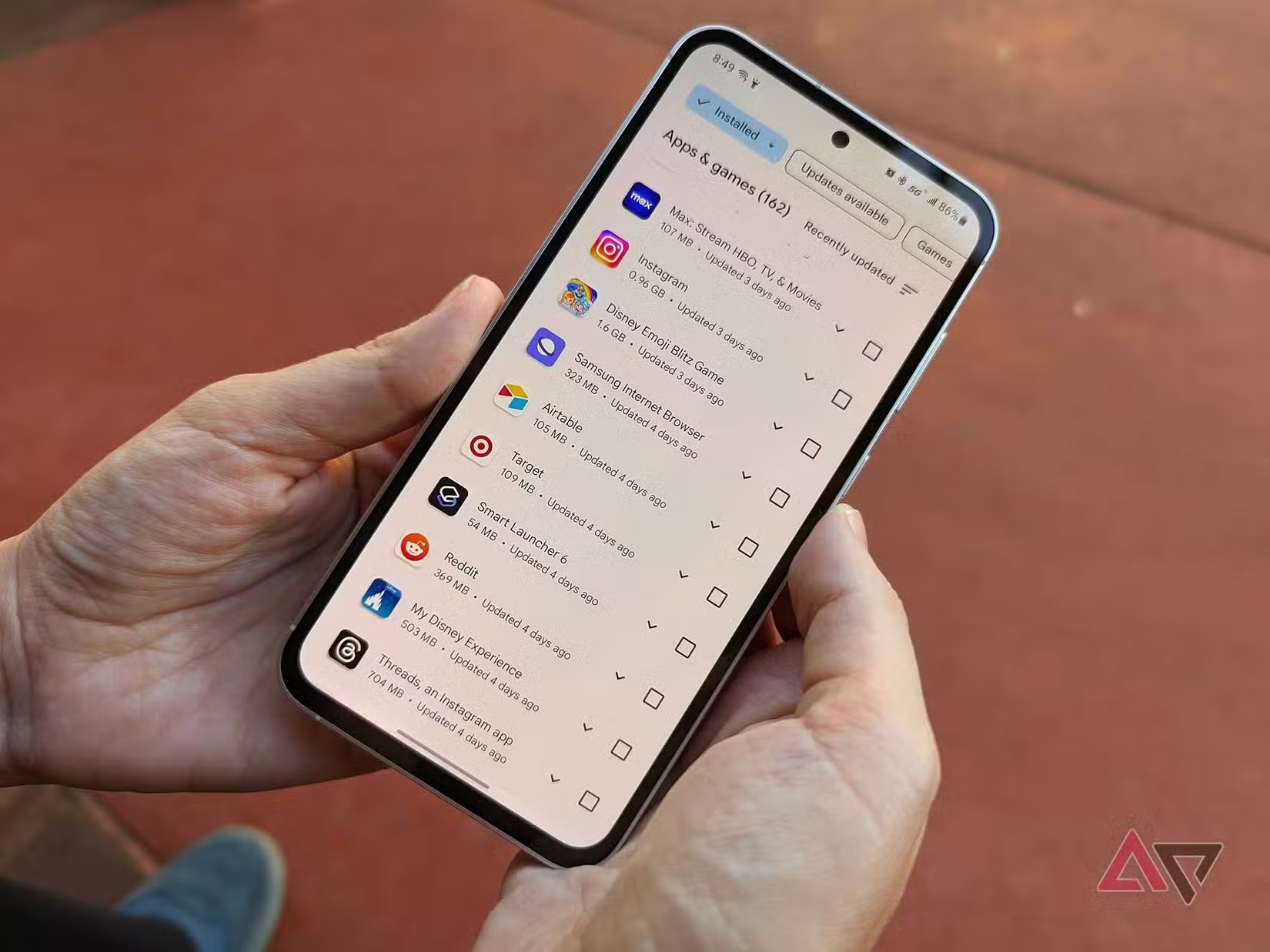
Apps are key to using smartphones. It's vital to know how to download and use them. Stores like the Google Play Store and App Store have many apps that enhance your device.
Using app stores (Play Store/App Store)
To download apps, first go to your device's app store. On Android, it's the Google Play Store. On iOS, it's the App Store. Both allow you to search for apps by name, category, or recommendations.
Installing, updating, and uninstalling
Once you find an app, follow the steps in the store to install it. Keeping your apps updated is crucial for new features and security. Uninstalling apps is easy and helps you free up space.
Essential apps for beginners
For beginners, some apps are very useful. These include productivity tools (e.g clock, calendar, notes, etc), social networking apps (e.g WhatsApp, Facebook, etc), and navigation apps (e.g maps).
4. Setting up connections and networks
Setting up and managing network connections on your smartphone is key to a good mobile experience.
WiFi network configuration
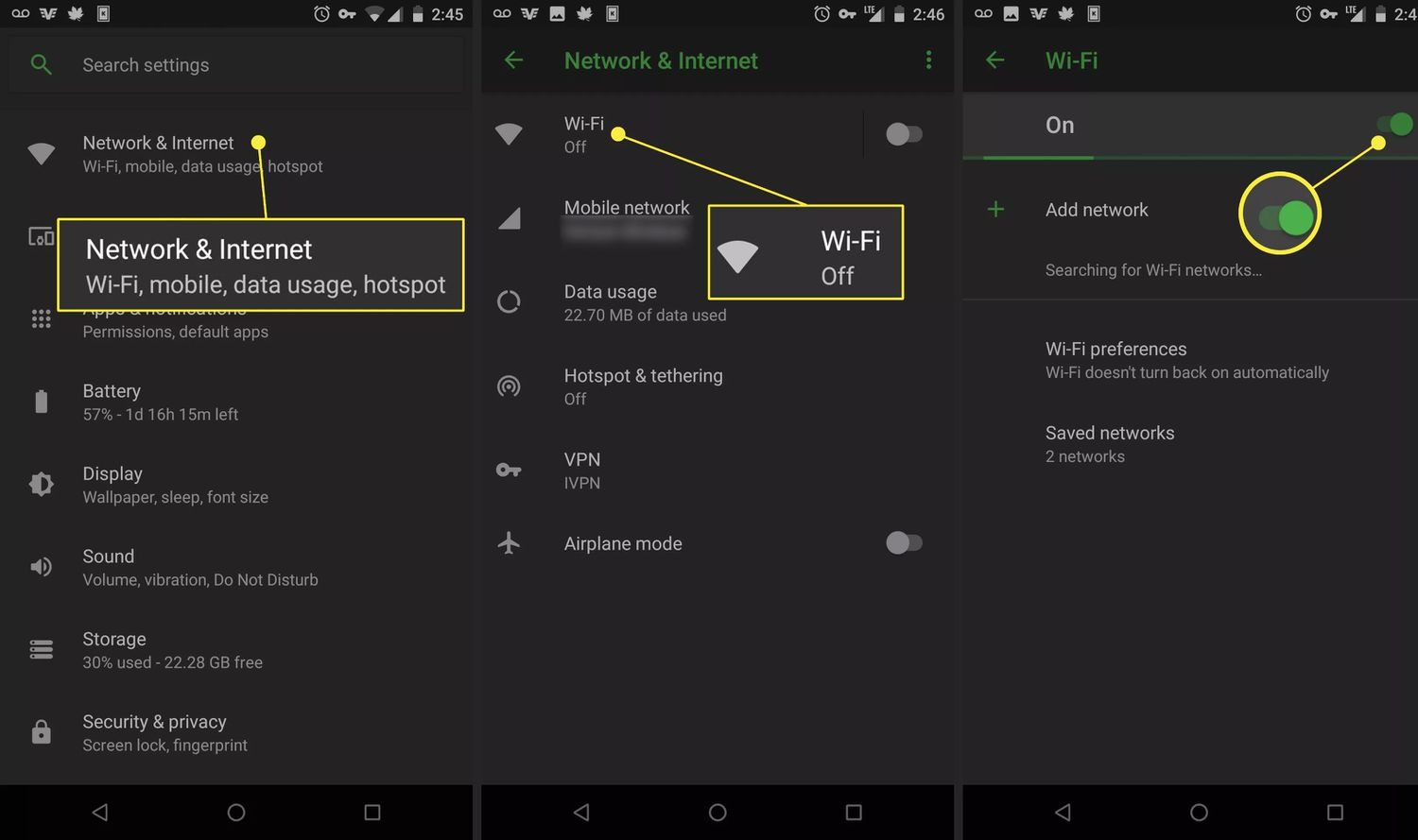
To connect to a Wi-Fi network, go to your device's settings. Then, select "Wi-Fi" and choose the network you want to use. It's crucial to choose a secure and trusted network.
Connecting to devices via Bluetooth
Bluetooth lets you connect your smartphone to other devices, such as headphones or speakers. To connect a device, go to Bluetooth settings. Then, turn on Bluetooth and select the device you want to connect to.
Mobile network
Swipe down the interface of your smartphone, you'll see a mobile network option. When you tap on it, it switches on. To configure the SIM you prefer for mobile network, go to your settings and follow the instructions.
5. Security and privacy
Security and privacy on your mobile device are key to protecting your data. In a world where we use our smartphones for almost everything, it's vital to keep our data safe..
Protection against malware and scams
Malware is a major threat to your device. Installing good antivirus software and keeping it updated is crucial. Also, be careful when downloading apps and avoid clicking on suspicious links.
Application permission management
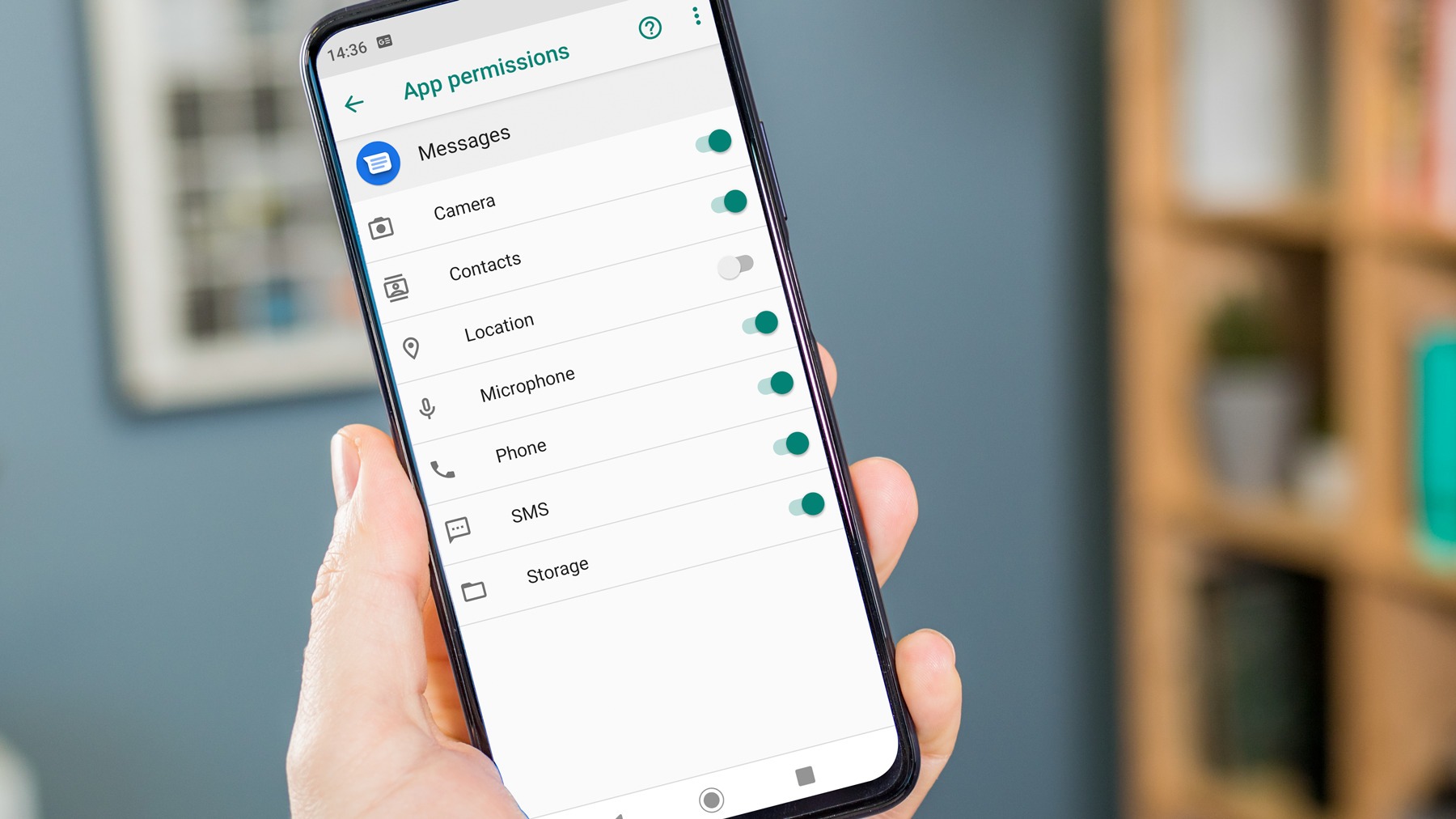
It's important to manage app permissions carefully. When installing an app, review the permissions it requests. Decline any that aren't necessary to protect your data.
Backup and recovery
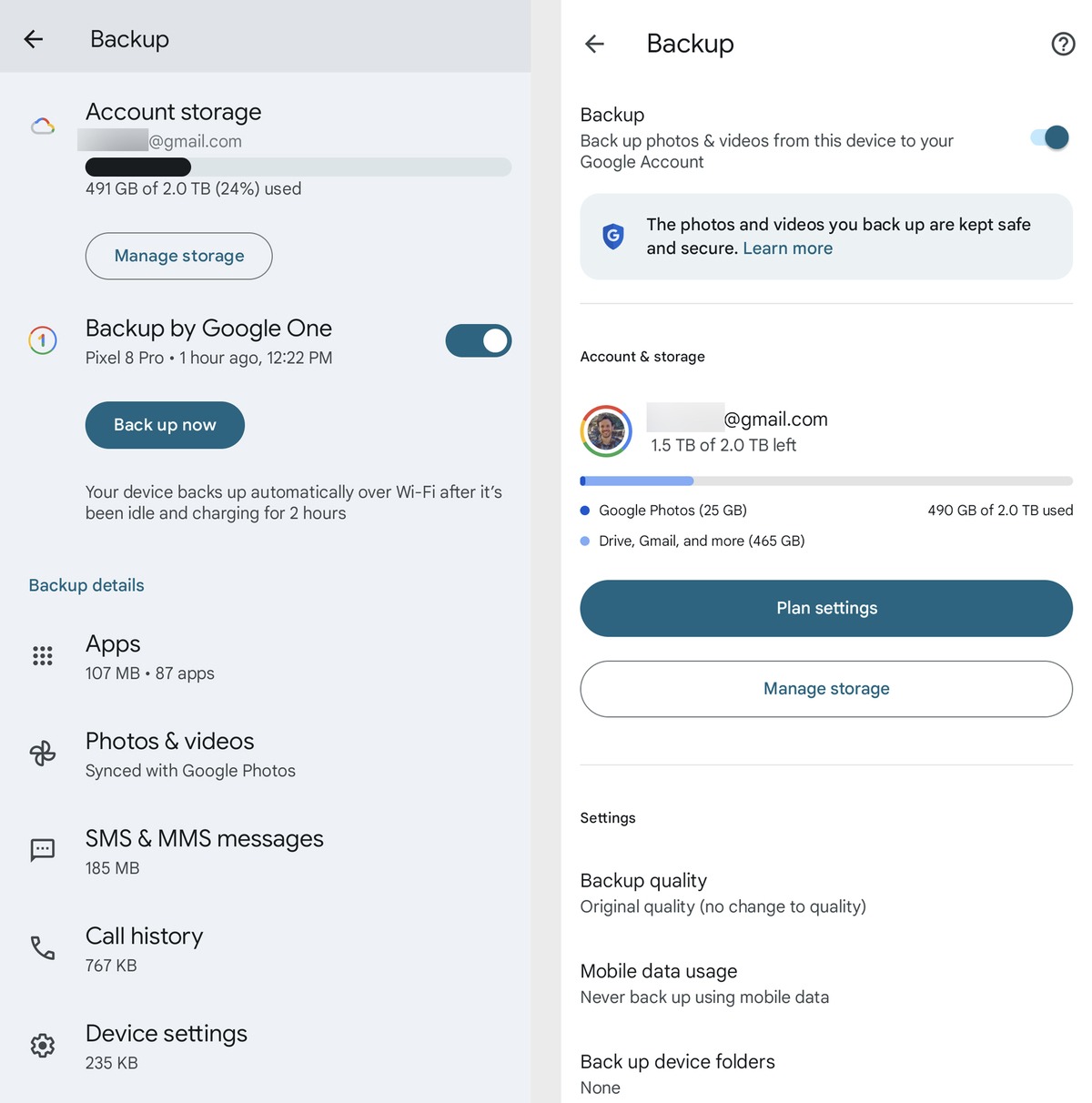
Backing up your data is vital. This protects you in case you lose your device. Use cloud services like Google Drive or iCloud for automatic backups. Also, familiarize yourself with recovery options to restore your data.
Conclusion
You've learned about the basic components and how to set up your smartphone. With this foundation, we encourage you to continue exploring your device. Personalize it to suit your needs.
Still using a feature phone? You can get an M-KOPA smartphone today.



.svg)


